Actualizando

VectorPaint
Estreno: 2021-10-17
© Anyi County Bingzhiyi Trading Co., Ltd.


±0
n°68 en Top apps pagadas > Diseño gráfico
±0
n°84 en Top apps pagadas para iPad > Diseño gráfico
Capturas de pantalla del iPhone


Capturas de pantalla del iPad


Descripción
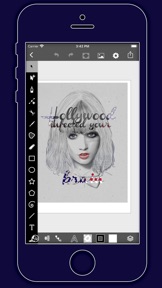
VectorPaint is a vector illustration app designed for IOS inspired by desktop class illustrator programms and powered by Metal, so Render times are up to 10x faster.
[Gallery]
The Gallery displays a thumbnail for each of your drawings. Tap a thumbnail to open it for viewing or editing. Tap the title below the thumbnail to enter a new title.
Tap the + button in the upper right corner of the screen to create a new drawing.
[Exporting]
Tap Select to enter selection mode.
In selection mode, tap on thumbnails to select them (or deselect them). When one or more drawings are selected, tap Email to email them.
Tap the Trash button to delete the selected drawings.
Tap Done to exit selection mode.
[Drawing]
Use the Edit menu to cut, copy, paste, delete, and alter the selection.
Use the Arrange menu to move objects backwards and forwards in the stack, group and ungroup objects, distribute objects, and align objects.
Use the Path menu to add anchors, remove anchors, outline strokes, join paths, combine paths, make masks, and place text on a path.
[Settings]
Use the Settings panel to turn the grid on and off, control the grid spacing, and indicate whether you want drawn objects to snap to the grid, snap to points in existing paths, or snap to the edges of existing paths. You can also turn rulers on and off, change the units of your drawing, and modify the dimensions of your drawing.
When Isolate Active Layer is enabled, you can only edit the active layer. The other layers in your drawing will be partially hidden. This makes it easy to edit the content of one layer without accidentally touching something in another layer.
When Outline Mode is enabled, you can only see the outlines of the objects in your drawing. This makes it easier to select objects that are obscured by other objects. It also significantly reduces rendering time for complex drawings.
[Zooming]
Use the standard iOS pinch gesture to zoom in and out. Once you’ve started a pinch gesture, you can lift one finger to move the canvas around without zooming.
If your drawing units are set to pixels, VectorPaint displays the drawing at actual pixel size when the zoom level is 100% (as indicated in the navigation bar).
If you’re using units that map to a physical measurement (inches, centimeters, etc.), VectorPaint displays the drawing at print size when the zoom level is 100%.
[Tools]
Tool PaletteVectorPaint provides a number of tools for creating and modifying your drawing.
The tool palette floats above the canvas. Drag it to move it around the screen. Flick it out of your way if necessary.
You can modify the behavior of many tools by holding down a second finger on the canvas after you start dragging. If you apply the second touch before you start dragging, you will zoom the canvas.
VectorPaint provides a number of tools for creating and modifying your drawing.
The tool palette floats above the canvas. Drag it to move it around the screen. Flick it out of your way if necessary.
[Layers]
VectorPaint upports an unlimited number of layers. Layers are useful for organizing complex drawings. Each component of the drawing can be on its own layer, making it much easier to edit.
You can delete, duplicate, rearrange, rename, lock, and hide layers. You can also control the transparency of each layer.
Tap the Layers button in the toolbar to view the layers in your drawing.
[Masks]
A mask is a path, compound path, or text object that clips the contents of other drawing elements.
To create a mask, select the objects that you want to mask and the path or text object that you want to use as the mask (the masking object must be the topmost selected object). Choose Mask from the Path menu.
To unmask objects, select the masked object and choose Unmask from the Path menu.
A masking path can have a fill and stroke just like any normal path.
Información
Desarrollador
Categorías
Versión
1.0
Tamaño
8.1 MB
Game Center
No
VPP Device Licensing
Sí
Puntuación
Clasificación: 4+
Compatibilidad
iOS 9.0 o posterior
Dispositivos
iPhone 4S, iPhone 5, iPhone 5c, iPhone 5s, iPhone 6, iPhone 6 Plus, iPhone 6s, iPhone 6s Plus, iPhone SE, iPhone 7, iPhone 7 Plus, iPhone 8, iPhone 8 Plus, iPhone X, iPhone XR, iPhone XS, iPhone XS Max, iPhone 11, iPhone 11 Pro, iPhone 11 Pro Max, iPhone SE (segunda generación), iPhone 12, iPhone 12 Pro, iPhone 12 Pro Max, iPhone 12 mini, iPhone 13, iPhone 13 Pro, iPhone 13 Pro Max, iPhone 13 mini, iPad 2 (Wi-Fi), iPad 2 (3G), iPad (tercera generación) (Wi-Fi), iPad (tercera generación) (4G), iPad (4th Generation) (Wi-Fi), iPad (4th Generation) (4G), iPad (quinta generación) Wi-Fi, iPad (quinta generación) Wi-Fi + Cellular, iPad (sexta generación) Wi-Fi, iPad (sexta generación) Wi-Fi + Cellular, iPad Pro, iPad Pro (Cellular), iPad Pro (9.7 pulgadas), iPad Pro (9.7 pulgadas) (Cellular), iPad Pro (12,9 pulgadas, segunda generación), iPad Pro (12,9 pulgadas, segunda generación) Wi-Fi + Cellular, iPad Pro (10,5 pulgadas), iPad Pro (10,5 pulgadas) Wi-Fi + Cellular, iPad Pro (11 pulgadas), iPad Pro (11 pulgadas) Wi-Fi + Cellular, iPad Pro (12,9 pulgadas, tercera generación), iPad Pro (12,9 pulgadas, tercera generación) Wi-Fi + Cellular, iPad Air, iPad Air (Cellular), iPad Air 2, iPad Air 2 (Cellular), iPad Air (tercera generación), iPad Air (tercera generación) Wi-Fi + Cellular, iPad mini (Wi-Fi), iPad mini (4G), iPad mini Retina, iPad mini Retina (Cellular), iPad mini 3, iPad mini 3 (Cellular), iPad mini 4, iPad mini 4 (Cellular), iPad mini (quinta generación), iPad mini (quinta generación) Wi-Fi + Cellular, iPad (séptima generación) Wi-Fi + Cellular, iPad Pro de 11 pulgadas (segunda generación), iPad Pro de 11 pulgadas (segunda generación) (Wi-Fi + Cellular), iPad Pro de 12,9 pulgadas (cuarta generación), iPad Pro de 12,9 pulgadas (cuarta generación) (Wi-Fi + Cellular), iPad Air (4th Generation) (Wi-Fi), iPad Air (4th Generation) (Wi-Fi + Cellular), iPad (octava generación) Wi-Fi, iPad (octava generación) Wi-Fi + Cellular, iPad Pro de 11 pulgadas (tercera generación), iPad Pro de 11 pulgadas (tercera generación) (Wi-Fi + Cellular), iPad Pro de 12,9 pulgadas (quinta generación), iPad Pro de 12,9 pulgadas (quinta generación) (Wi-Fi + Cellular), iPad (novena generación), iPad (novena generación) Wi-Fi + Cellular, iPad mini (sexta generación), iPad mini (sexta generación) Wi-Fi + Cellular, iPod touch (5.ª generación), iPod touch (sexta generación), iPod touch (séptima generación), Apple Watch Series 4, Apple Watch Series 5, Apple Watch Series 6 (GPS), Apple Watch Series 6 (GPS + Celular), Apple Watch Series SE (GPS), Apple Watch Series SE (GPS + Celular), Apple Watch Series 7 (GPS), Apple Watch Series 7 (GPS + Celular)
Idiomas
español, alemán, chino, francés, inglés, italiano, japonés, portugués, turco
App Store: Valoraciones de clientes
Calificaciones y reseñas
0.0 de 5 (Sin valoración)
App Store: Reseñas de usuarios
Ninguna entrada