Actualizando


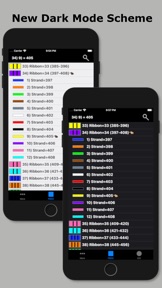
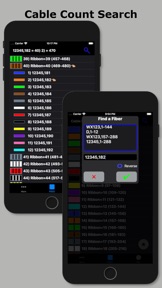
Capturas de pantalla del iPhone



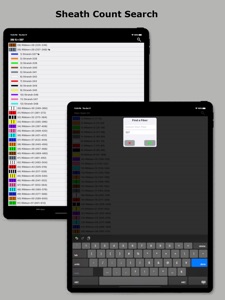
Capturas de pantalla del iPad



Descripción
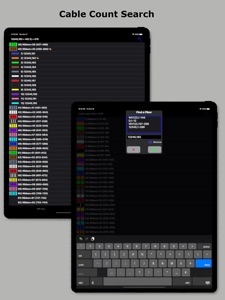
Fiber Optic Color Code is a searchable expanding chart of fiber strands that translates the color code of Loose Tube, Ribbon and other high count fiber optic cables.
~Feature highlights:
customizable cables from 12F to 6912F, custom color codes, variable start fiber # searches, searchable cable count (with reverse cable count) and color code drill down.
This app shall be used only as a handy secondary reference tool as we know there are mistakes made in the field and incorrect records that always need to be taken into account. Use of a tone source as a primary identifier will always be more accurate.
Locate fibers with or without cable counts. Simply enter a strand # without a cable count or enter the 'Cable,Fiber' if you're using a complex cable count (app auto detects if there's a count or not). The app will then auto expand and place index pointers at your found fibers locations.
~To configure High Density cables (RILT#1-5 positions) to include Ribbon in loose tube, Spår/slotted core or yarn bundled cable :
1) Select the round cable type configuration button.
2) Select any of the last 5 items in the list labeled as RILT#1-5.
3) Select the bottom left "More" tab.
4) Select "Set RILT" and configure
RILT#1-5 maximum configuration of any combination (not to exceed 6912F):
Super Tubes: 1-24max
Ribbons: 1-144max
Fibers: 1-48max
~Create customized color codes:
1) Select the bottom left "More" tab.
2) Then select 'Set Color Code' from the 'More Menu'.
3) Scroll down to the very bottom of the populated color code list and select 'Custom Setup'.
4) At the next screen that appears; click the 'Start here' button, then select a color code position you'd like to edit from the list.
5) Edit the list name.
6) Start with tube colors then edit super & fiber colors (starting with tube colors will pre-populate super and fiber colors)
7) Then click the green check button on the fibers screen after reviewing your selections to save.
~Input Cable Count screen
While not necessary to use in the app. You can enter a full complex cable count that can be split into a cable type sub-unit configuration of your choice (2, 4, 6, 8, 12, 14, 16, 18, 24, 32, 36, 48, RILT #1-5).
~Smart Save
Saving a cable count by a cable position turns the Search Button Icon and related cable count text box borders to a distinguishable color for keeping track of which cable cable is being currently used within the app.
1) Select the round Cable Type button
2) Enter cable count
3) Optionally select a position to save count to
4) Click the "Color Code" button
Cable1 = Blue
Cable2 = Orange
Cable3 = Green
Custom Start Fiber (Without a cable count) = Red
Unsaved cable count or Start fiber is #1 = Gray
Smart Save radio button color key:
green = vacant
black = existing count stored
red = existing count to be overwritten
blue = saved successfully
To remove a previously saved cable count. Select the position to be deleted and long click the Clear button.
~Cable Count Input validation dot:
Provides the user with a simple way to know if the cable count entered is valid for the color code chart. It will turn red if missing a cable name, missing a comma, the low fiber range is greater than the high fiber range, or the sum of the whole cable count is greater than the chosen cable type.
~Double Space Auto Punctuation:
Easily enter a cable count using the apps built in double space auto-punctuation feature by:
1) Enter cable name followed by 2 spaces (app automatically places a comma)
2) Enter the low fiber followed by 2 spaces (app automatically places a dash)
3) Enter the high fiber followed by 2 spaces (app automatically drops down for next line of count)
Novedades de la versión 8.06
Removed the recently added send count as text button due to text messaging length limitations and other considerations. The app will still be able to receive counts through the fiber://icc?count= url scheme from other sources like email, web text link and other possible paperless sources including my soon to be released cable count splicing app. Thanks for your patience.
URL scheme Examples:
Without a count:
fiber://
With single line of count:
fiber://icc?count=12WX,1-288
With multi-lines of count:
fiber://icc?count=12WX,1-288%0A3LX,145-408%0AD,553-576
multi-line separator = %0A (percent symbol, zero, capital "A")
Información
Desarrollador
Categorías
Versión
8.06
Tamaño
2.8 MB
Game Center
No
VPP Device Licensing
Sí
Puntuación
Clasificación: 4+
Compatibilidad
iOS 14.4 o posterior
Dispositivos
iPhone 5s, iPhone 6, iPhone 6 Plus, iPhone 6s, iPhone 6s Plus, iPhone SE, iPhone 7, iPhone 7 Plus, iPhone 8, iPhone 8 Plus, iPhone X, iPhone XR, iPhone XS, iPhone XS Max, iPhone 11, iPhone 11 Pro, iPhone 11 Pro Max, iPhone SE (segunda generación), iPhone 12, iPhone 12 Pro, iPhone 12 Pro Max, iPhone 12 mini, iPad (quinta generación) Wi-Fi, iPad (quinta generación) Wi-Fi + Cellular, iPad (sexta generación) Wi-Fi, iPad (sexta generación) Wi-Fi + Cellular, iPad Pro, iPad Pro (Cellular), iPad Pro (9.7 pulgadas), iPad Pro (9.7 pulgadas) (Cellular), iPad Pro (12,9 pulgadas, segunda generación), iPad Pro (12,9 pulgadas, segunda generación) Wi-Fi + Cellular, iPad Pro (10,5 pulgadas), iPad Pro (10,5 pulgadas) Wi-Fi + Cellular, iPad Pro (11 pulgadas), iPad Pro (11 pulgadas) Wi-Fi + Cellular, iPad Pro (12,9 pulgadas, tercera generación), iPad Pro (12,9 pulgadas, tercera generación) Wi-Fi + Cellular, iPad Air, iPad Air (Cellular), iPad Air 2, iPad Air 2 (Cellular), iPad Air (tercera generación), iPad Air (tercera generación) Wi-Fi + Cellular, iPad mini Retina, iPad mini Retina (Cellular), iPad mini 3, iPad mini 3 (Cellular), iPad mini 4, iPad mini 4 (Cellular), iPad mini (quinta generación), iPad mini (quinta generación) Wi-Fi + Cellular, iPad (séptima generación) Wi-Fi + Cellular, iPad Pro de 11 pulgadas (segunda generación), iPad Pro de 11 pulgadas (segunda generación) (Wi-Fi + Cellular), iPad Pro de 12,9 pulgadas (cuarta generación), iPad Pro de 12,9 pulgadas (cuarta generación) (Wi-Fi + Cellular), iPad Air (4th Generation) (Wi-Fi), iPad Air (4th Generation) (Wi-Fi + Cellular), iPad (octava generación) Wi-Fi, iPad (octava generación) Wi-Fi + Cellular, iPod touch (sexta generación), iPod touch (séptima generación)
Idiomas
español, alemán, bokmal noruego, checo, eslovaco, esloveno, francés, griego, inglés, italiano, neerlandés, polaco, portugués, rumano, sueco, tailandés
App Store: Valoraciones de clientes
Calificaciones y reseñas
0.0 de 5 (Sin valoración)
App Store: Reseñas de usuarios
Ninguna entrada